

Beta guide

Getting started with Order.

Order puts your day on one index card: the five things that matter most, plus one more. The basics come first, then everything else. It takes about five minutes.

Part one

The basics, in 5+1 steps.

Five steps for every day, plus one more that makes you quick.

First, the welcome

The first time you open Order on a device with nothing in it yet, a short welcome explains the whole idea in four lines.

Tap Start Today's Card to add your first task, or close it to look around first. You can read it again any time: tap then How Order Works.
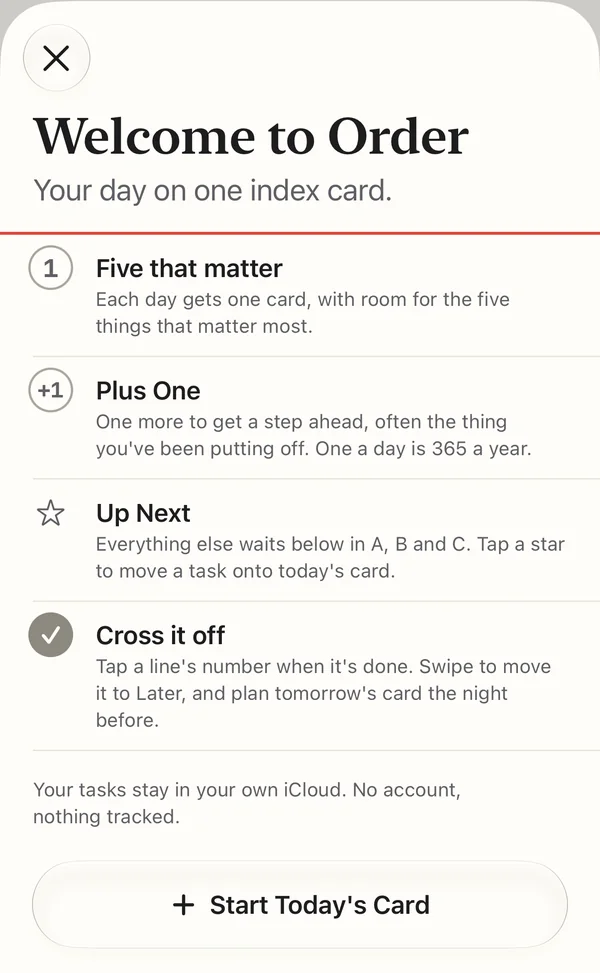
Welcome to Order: Your day on one index card. Four lines follow. Five that matter: each day gets one card, with room for the five things that matter most. Plus One: one more to get a step ahead. Up Next: everything else waits below in A, B and C. Cross it off: tap a line's number when it's done. Then a note that your tasks stay in your own iCloud, and a Start Today's Card button.
The welcome, on your first launch.

Your card at a glance

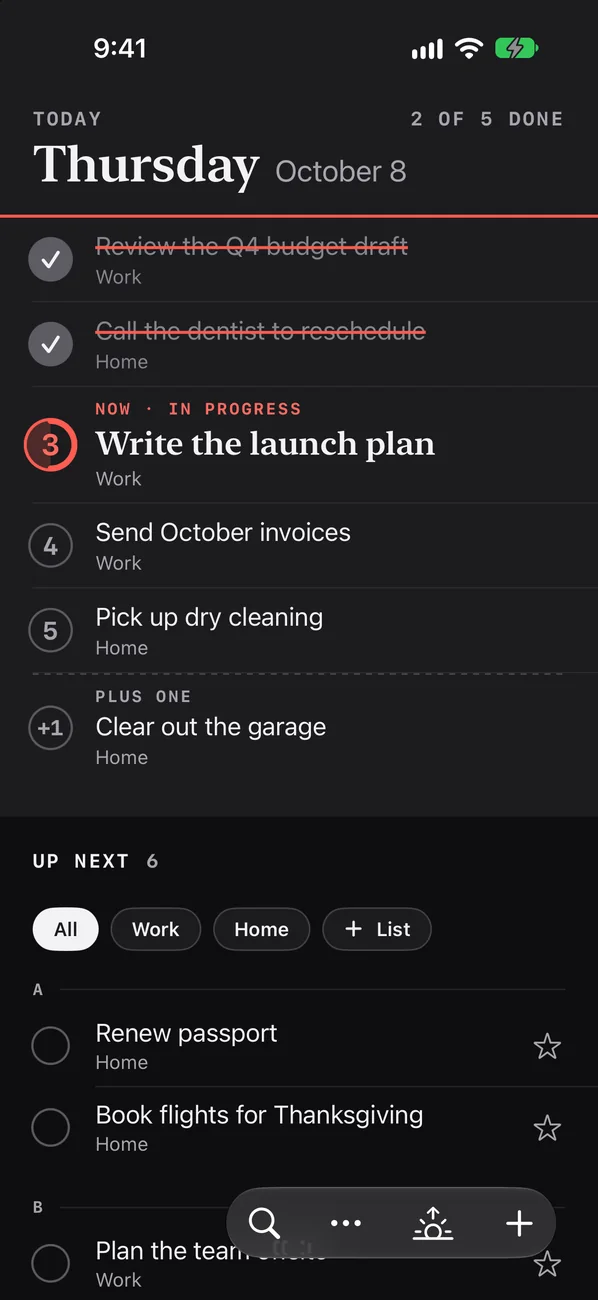
Open Order and you see today's card. It has room for the five things that matter most today, plus one more. Everything else waits below.

  1. Today's card. Five lines for today's most important tasks.
  2. Now. The first line that isn't done, marked in red. Start here.
  3. Plus One. One more, to get a step ahead. Save it for the thing you keep putting off.
  4. Up Next. Your other tasks, waiting in A, B and C. A comes first.
  5. The star. Tap it to move a task onto today's card.
  6. The buttons. Search, More, Tomorrow and Add.

Add a task

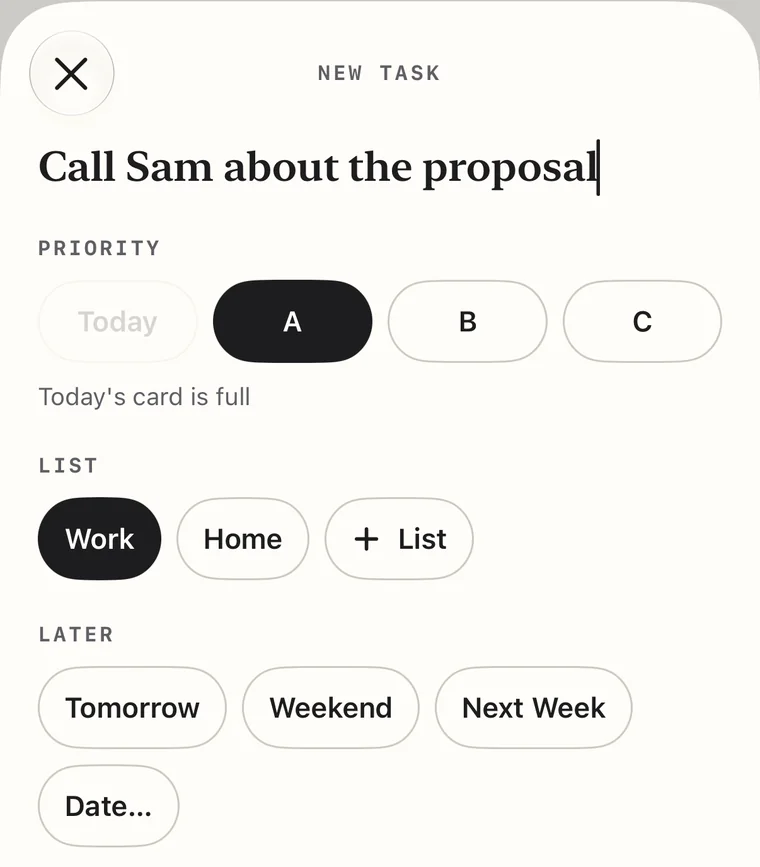
Tap at the bottom of the screen, or tap an empty line on the card. Type the task, then tap Add Task.

While the card has room, a new task goes on the next free line. Once the card is full, new tasks go to the top of A.

Before you add it, you can choose its priority, a list, a later day, a reminder or a repeat. To add several tasks at once, paste a list with one task on each line.

The new-task page: Call Sam about the proposal typed as the title. Under Priority, A is chosen and Today is dimmed, with the words Today's card is full. Under List, Work is chosen. Under Later: Tomorrow, Weekend, Next Week and Date…
Today's card is full here, so the new task will go to the top of A, in the Work list.

Cross it off

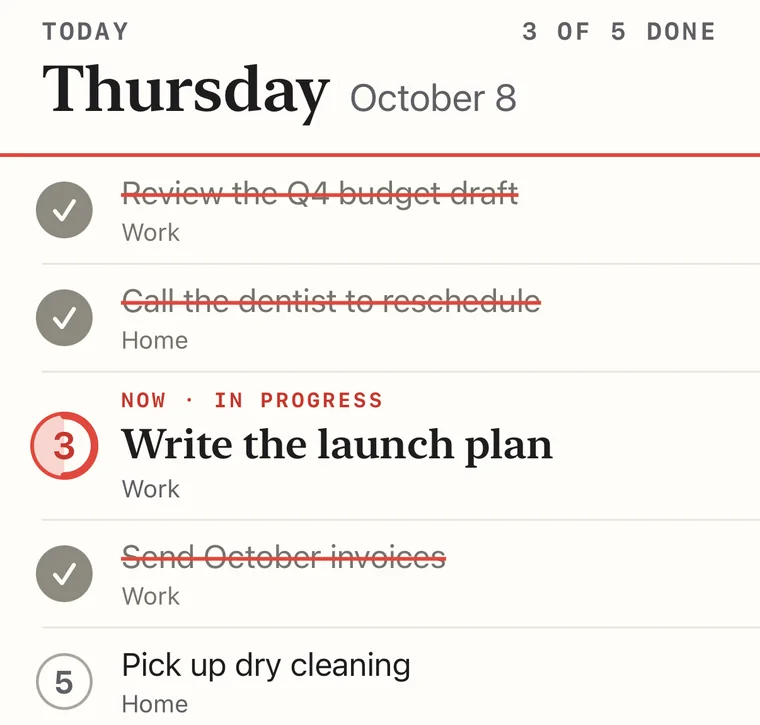
Tap a line's number when it's done. A red line strikes it through and the number turns into a check. Now is always the first line that isn't done, so it moves on as you go.

Done lines stay on the card for the rest of the day, so you can see what you got through. Changed your mind? Tap the check to bring the task back.

Finishing, adding, deleting and moving a task to Later all offer Undo for a few seconds. You can also shake your iPhone to undo.

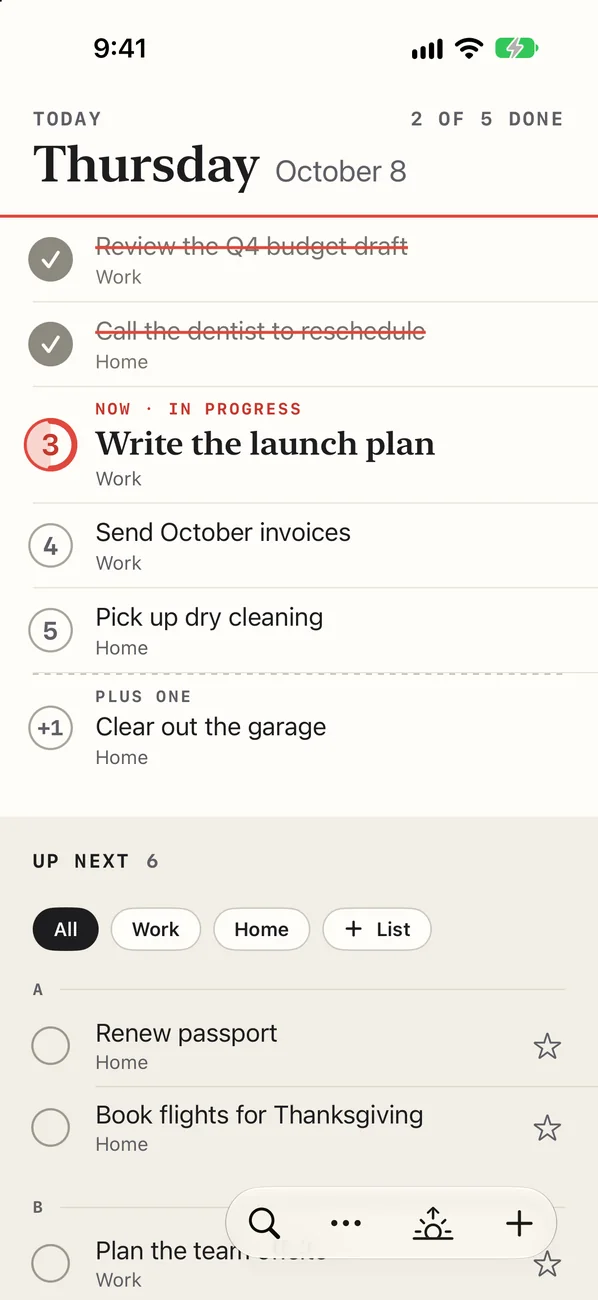
Today's card, 3 of 5 done. Review the Q4 budget draft, Call the dentist to reschedule and Send October invoices are crossed off in red, each with a check in place of its number. Line 3, Write the launch plan, is still Now, and line 5, Pick up dry cleaning, is open.
Line 4 just crossed off: 3 of 5 done. Line 3 is still Now.

Pick from Up Next

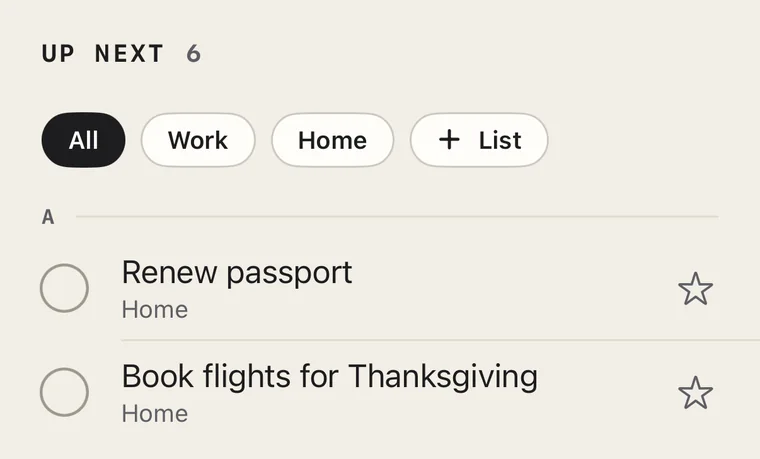
Up Next holds your other open tasks, in priority order: A, then B, then C. Tap a task's to move it onto today's card.

Tap a task's circle to finish it without putting it on the card. It's crossed off, leaves Up Next, and still counts, as “1 MORE” at the top of the card.

Up Next, 6 tasks, with list buttons All, Work, Home and + List, then the A priorities: Renew passport and Book flights for Thanksgiving, each with a circle on the left and a star on the right.
Up Next: a circle to finish each task, and a star to put it on today's card.

Open a task

Tap a task's name to open it. Then you can:

  • Rename it.
  • Set its priority: Today, A, B or C.
  • Put it in a list.
  • Move it to Later, set a reminder, or make it repeat.
  • Add a note. Links in a note open in your browser.
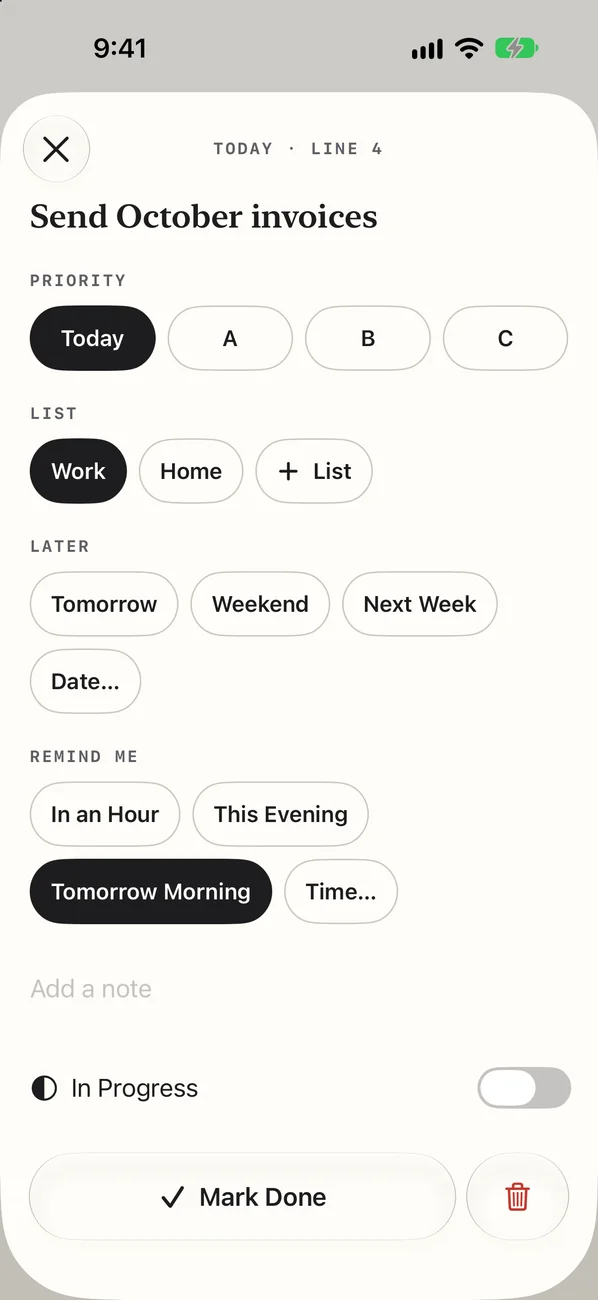
  • Turn on In Progress, tap Mark Done, or tap the red trash button to delete it.

Swipe down to close it.

The page for Send October invoices, labeled Today, line 4: its title, then Priority with Today chosen, List with Work chosen, Later's choices, Remind Me with Tomorrow Morning chosen, Add a note, an In Progress switch, a Mark Done button and a red trash button.
A task's page. Tomorrow Morning sets a reminder for 9 AM.

Swipe and drag

Once the basics feel natural, these make you quick. Finishing, deleting and Later offer Undo here too. To undo a drag, drag the task back.

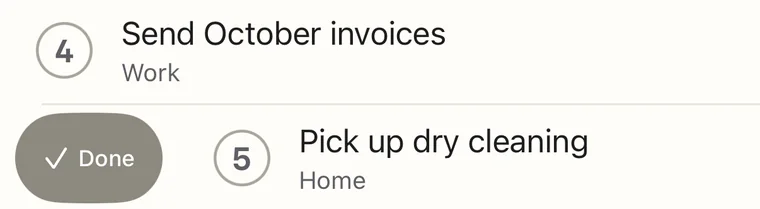
  • Swipe right on a line to finish it.
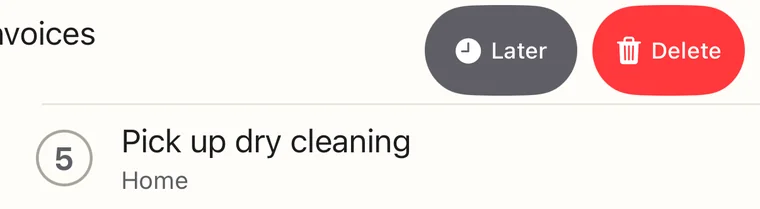
  • Swipe left on a line for Later and Delete. Swipe all the way to delete.
  • In Up Next, a short swipe right shows Done and Today.
  • Touch and hold a task, then drag it: up or down to change its place, onto today's card, or into A, B or C. Higher up means sooner.
  • Touch and hold without moving for a menu: In Progress, Later and Delete.
Line 5, Pick up dry cleaning, slid to the right to show a Done button.
Line 4, Send October invoices, slid to the left to show Later and Delete buttons.
Swipe right for Done. Swipe left for Later and Delete.

Part two

Plan ahead.

Order keeps today small on purpose. Here's where everything else goes.

When the card is full

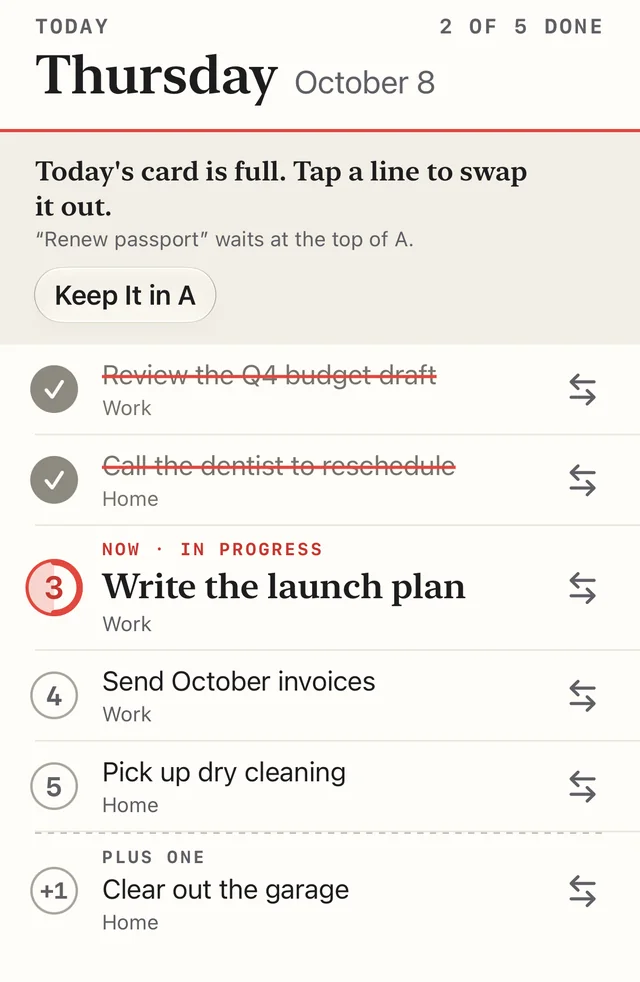
Five lines is the point: it keeps today honest. If you star a task when the card is full, it waits at the top of A while Order asks what to swap.

  • Tap any line on the card to trade places with it. A line you swap out goes to the top of A (a finished one just leaves the card).
  • When the Plus One line is free, tap Make It the Plus One to put it there.
  • Or tap Keep It in A and decide later.
A full card with a banner under the red rule: Today's card is full. Tap a line to swap it out. Renew passport waits at the top of A, with a Keep It in A button. Each of the five lines and the Plus One shows a swap mark on the right.
A full card. Every line shows a swap mark until you choose.

Later

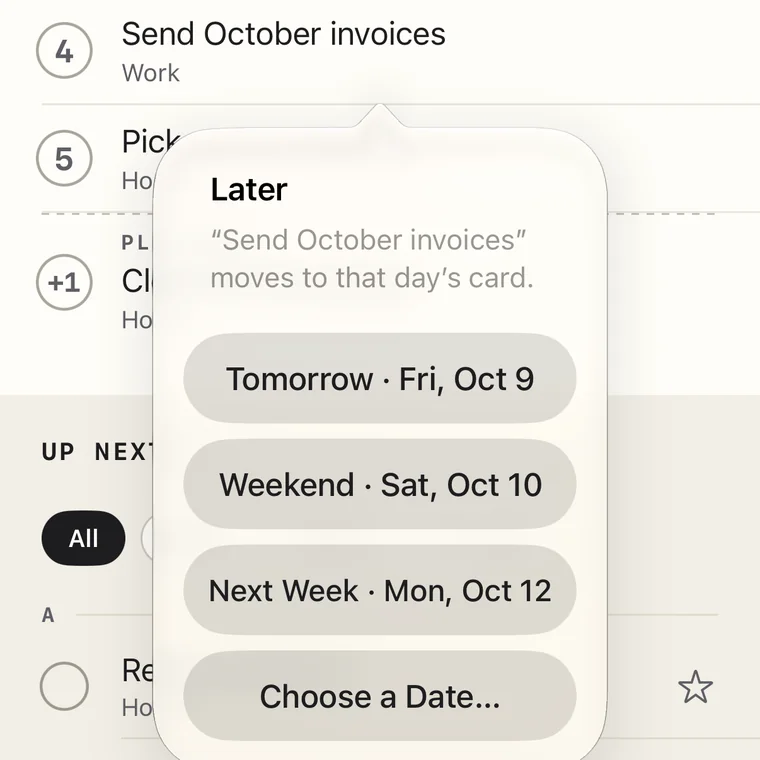
Not for today? Swipe left on a task and tap Later. Pick a quick choice like Tomorrow or Next Week, or tap Choose a Date… for any day you like.

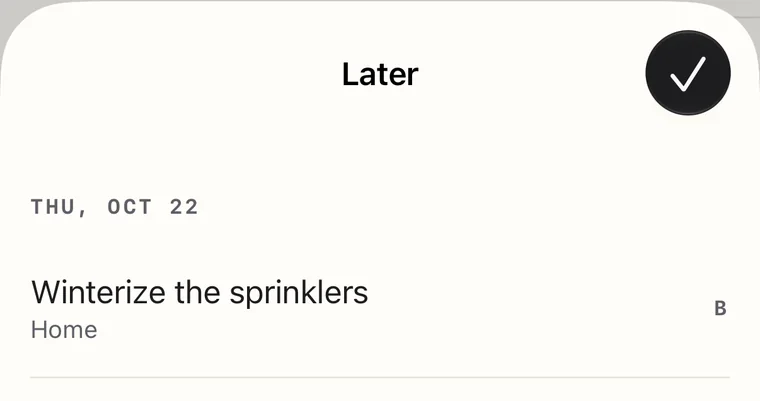
A line on today's card moves to that day's card. A task in Up Next steps aside, then comes back to its place on that day. To see what's waiting, tap “tasks for later” at the bottom of Up Next, or tap More › Later. Lines you moved to tomorrow are on tomorrow's card.

Later, opened from line 4, Send October invoices: it moves to that day's card. The choices are Tomorrow, Fri, Oct 9; Weekend, Sat, Oct 10; Next Week, Mon, Oct 12; and Choose a Date…
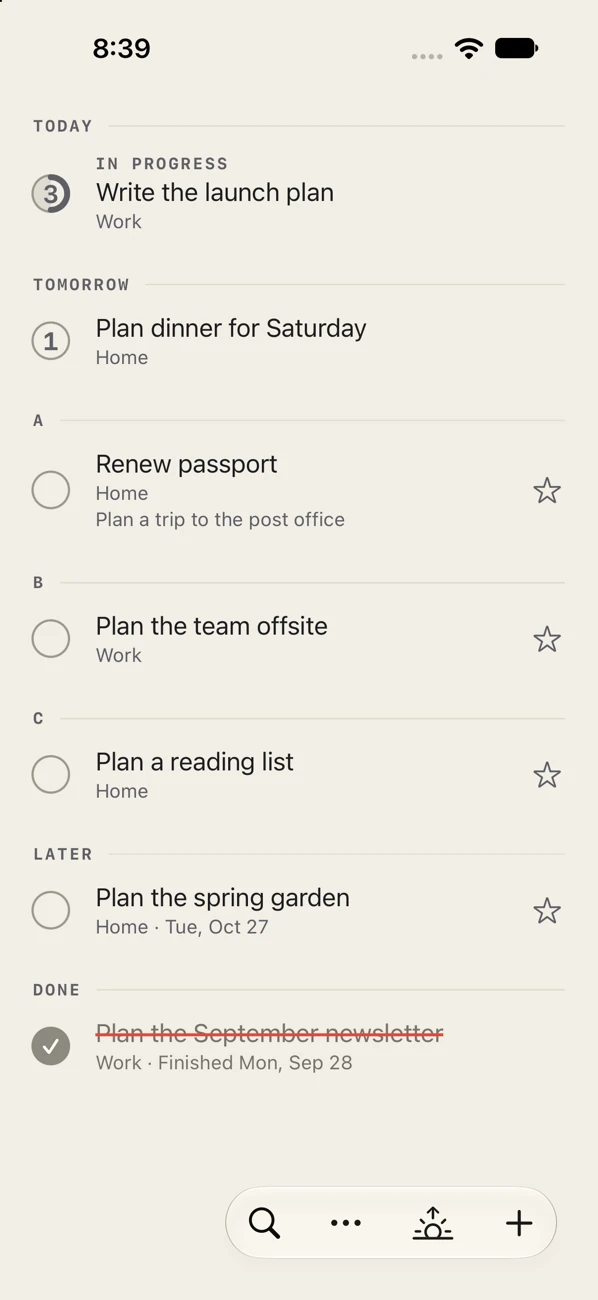
The Later list: Winterize the sprinklers, in the Home list, waits until Thursday, October 22.
Later's choices, each with its date, and the Later list of what's waiting.

Tomorrow's card

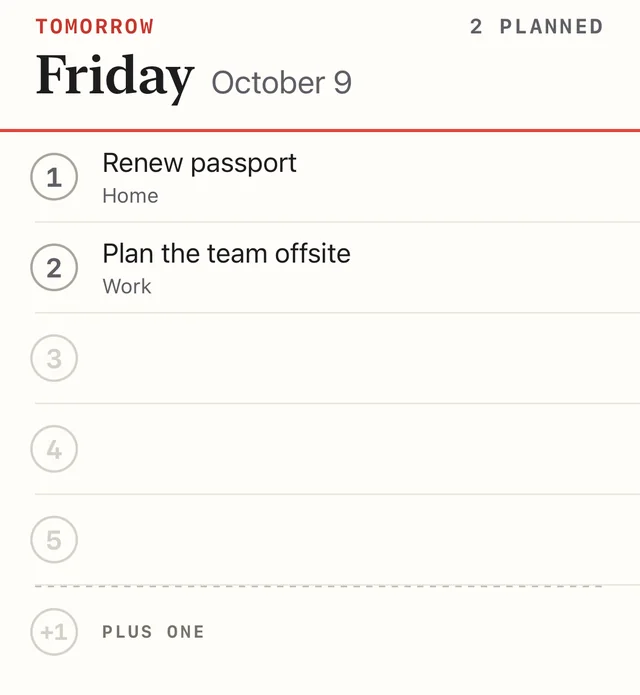
Tap to flip to tomorrow's card and plan it the night before. While it's showing, stars and new tasks land on tomorrow's card. Tap the button again to come back to today.

To take a line off tomorrow's card, swipe left on it and tap Up Next.

Tomorrow's card for Friday, October 9, marked Tomorrow in red, with 2 planned: Renew passport on line 1 and Plan the team offsite on line 2. Lines 3 to 5 and the Plus One are blank.
Tomorrow's card, with two lines planned.

A fresh card every day

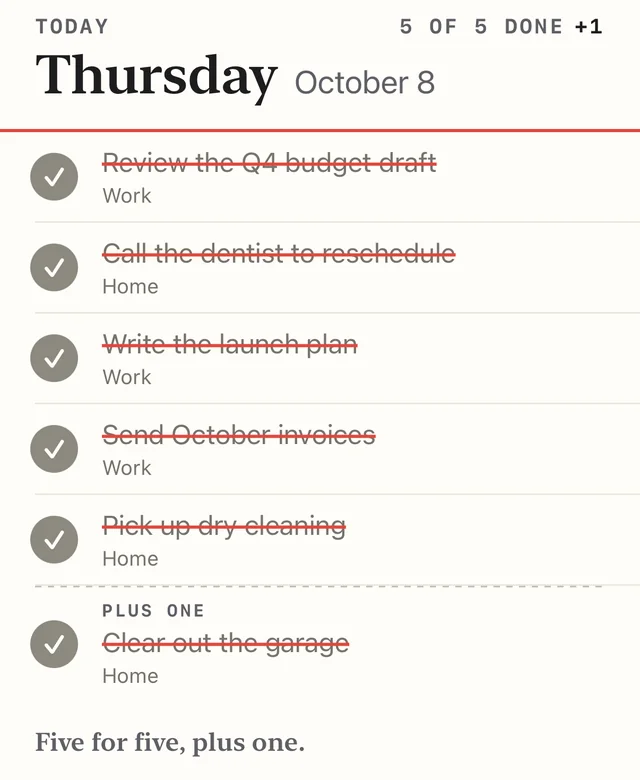
Cross off all five and the Plus One, and the card says so: Five for five, plus one.

At midnight, Order starts a new card. Anything you didn't finish moves over in the same order, and finished lines clear away. Lines you planned for that day come next. If more than five are waiting, the extras go to the top of A.

Today's card with all five lines and the Plus One crossed off: 5 of 5 done +1, and under the card, Five for five, plus one.
A finished card. At midnight, these lines clear away.

Lists

Keep work and home apart. Tap + List under Up Next and name your list. Up Next then shows just that list, so it may look empty at first. Tap a list's name to see only its tasks, or All to see everything. Today's card always shows everything.

New tasks go in the list you're looking at. To move a task, open it and tap a list's name. To rename, reorder or delete lists, tap then Lists. Deleting a list keeps its tasks.

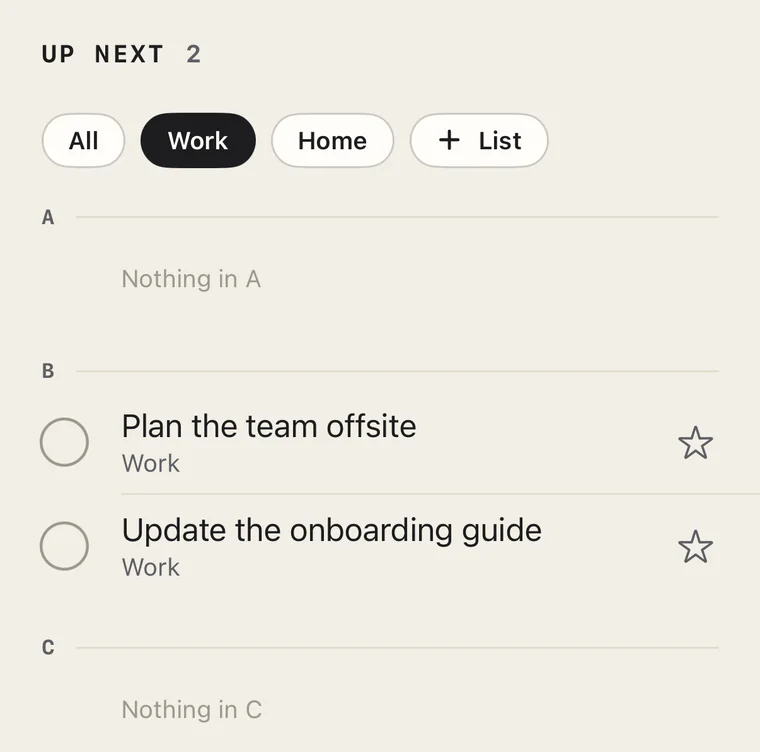
Up Next with the Work list chosen: 2 tasks. A shows Nothing in A, B holds Plan the team offsite and Update the onboarding guide, and C shows Nothing in C.
Up Next showing only the Work list.

Part three

Order Pro.

Order is free for up to 10 open tasks. Pro adds unlimited tasks, reminders, repeating tasks and import.

Free and Pro

Free holds 10 open tasks, and finished ones don't count. At 10, nothing locks: you can still see, finish, move and delete every task, and finishing one frees a spot.

To get Pro, tap then Order Pro. On a Mac, choose Order › Order Pro. One subscription covers your iPhone, iPad and Mac.

In TestFlight, buying Pro costs nothing. It's for testing only, and it doesn't carry over to the App Store version.

Reminders

Open a task, and under Remind Me, tap In an Hour, This Evening (6 PM) or Tomorrow Morning (9 AM). Or tap Time…, pick a day and time, and tap Remind Me. The time shows under the task's name.

A reminder is only a nudge. It never moves the task. When it goes off, tap it to open the task, or touch and hold it for Done, In an Hour and Tomorrow. The last two move the reminder, not the task.

The first time you set a reminder, Order asks to send you notifications. Tap Allow.

A reminder shows just the task's name.

Repeating tasks

Open a task, and under Repeat, choose Daily, Weekdays, Weekly, Monthly or Yearly. Weekly lets you pick the days.

When you finish a repeating task, the next one waits in Later until its day, then comes back at the top of its priority. To skip one, open it and tap Skip under Mark Done.

Import

Bring your tasks from another app. Tap then Import and Export, and choose From Reminders or From a File: a spreadsheet saved as CSV, or a text or Markdown list. On a Mac, choose File › Import.

Order shows what it will add before it adds anything. Imported tasks go into Up Next, never onto today's card, and Undo takes them all back out.

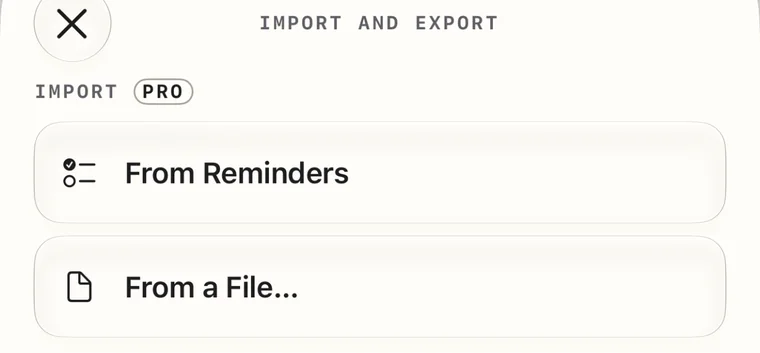
Import and Export, with Import marked Pro: From Reminders and From a File…
Import, from Reminders or a file.

Part four

Extras.

Add and finish tasks without opening Order, and take your card to your iPad and Mac.

Widgets

Put today's card on your Home Screen: touch and hold an empty spot until the apps jiggle, tap Edit, then Add Widget, and choose Order.

Tap a number on the widget to cross it off without opening Order. On the medium and large widgets, tap to add a task. After 8 PM, the widget shows tomorrow's card. There are Lock Screen widgets too.

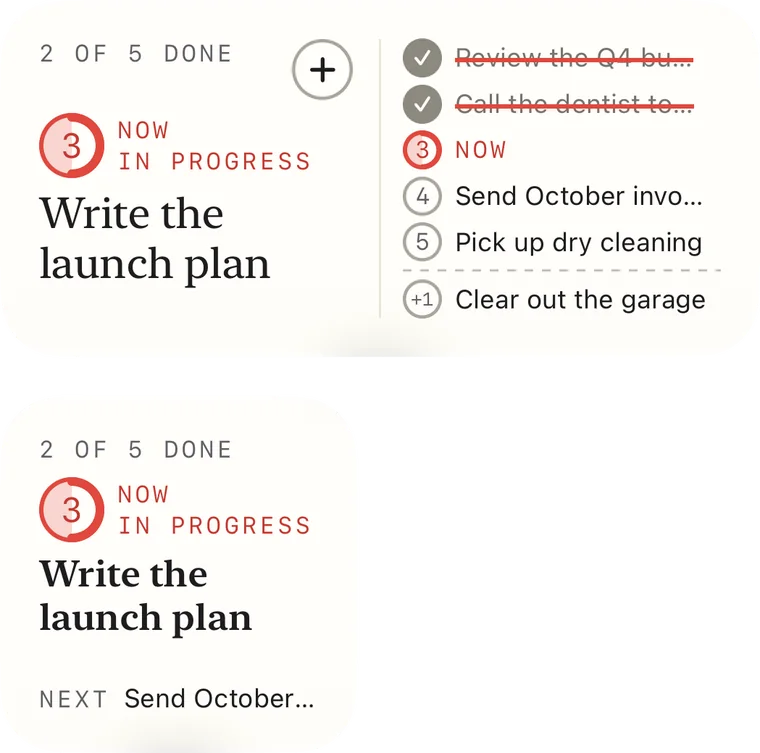
Two Order widgets. The medium one shows 2 of 5 done and Write the launch plan as Now and in progress, with the card's lines on the right. The small one shows Now and, under it, Next: Send October invoices.
The medium and small widgets.

Siri

Say Add to Order, and Siri asks what the task is. Ask What's on my Order card? to hear today's card. You can also say Finish a task in Order or Move a task to tomorrow in Order. Siri support is new, so tell us how it goes.

Control Center

Start a task from anywhere with the Add to Order control. Open Control Center, touch and hold an empty spot, tap Add a Control, and search for Order. It also works on the Lock Screen, and on the Action button if your iPhone has one.

Share sheet

In Safari, open the share sheet with (it may be under the button), then tap Send to Order and Add Task. The page's title becomes the task, with the link in its note. Shared text works too.

Spotlight

Swipe down on your Home Screen and type part of a task's name. Tasks you haven't finished show up there; tap one to open it in Order.

In Progress

Started something big? Open it and turn on In Progress, or touch and hold it and tap In Progress. Its circle fills halfway and it says IN PROGRESS, so you can see where you left off.

Dark Mode

Order matches your iPhone. Turn on Dark Mode in Settings › Display & Brightness, and the card turns dark, with the same red rule.

On iPad

Order runs on iPad too. Sign in to the same Apple Account, and your iPhone and iPad show the same card. Changes usually arrive within a minute.

On iPad, you can drag text or a link from another app onto the card to make it a task.

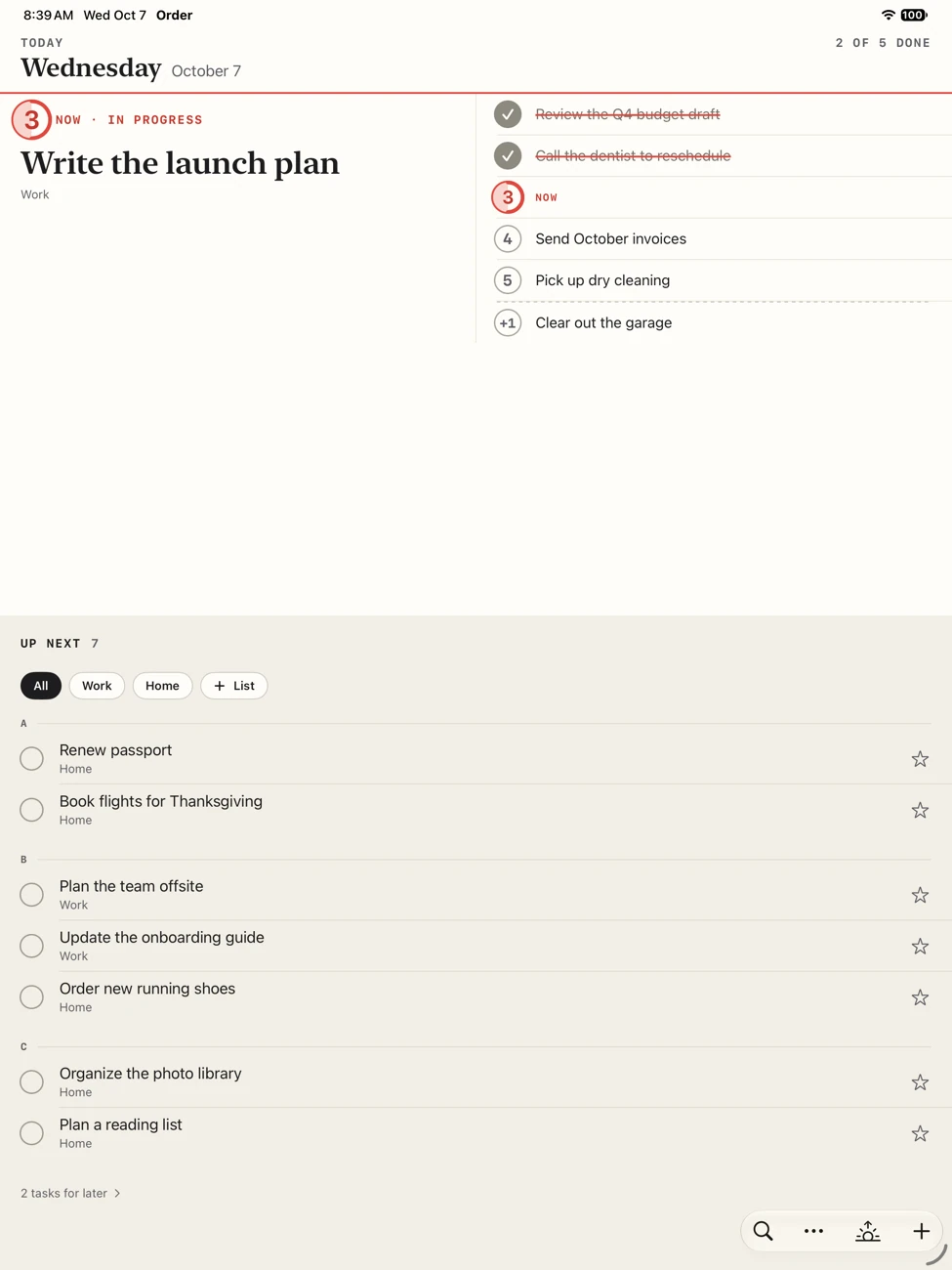
Order on iPad in portrait: today's card across the top, with Now large on the left and the numbered lines on the right, and Up Next below with its lists and A, B and C.
On iPad in portrait, today's card sits above Up Next. Turn it sideways and they sit side by side.

On your Mac

Order runs on Mac too, with today's card beside Up Next in one window. Sign in to the same Apple Account, and it shows the same card as your iPhone.

  • Add from any app. Press your Add to Order shortcut, type the task and press Return. Choose the keys in Order › Settings.
  • The menu bar. Click Order's mark in the menu bar for today's card, and cross off a line with the window closed.
  • The keyboard. Use the arrow keys to move through your tasks, Return to open one, and ⌘Return to finish it. The Task menu shows the rest.

Part five

Beta feedback.

You're using an early build. Tell us what's confusing, what breaks, and what you love. It all shapes the app.

Send feedback

  1. In Order, take a screenshot. Tap its thumbnail in the lower-left corner, tap Share Beta Feedback, say what happened, and tap Submit.
  2. Or open the TestFlight app on any of your devices, choose Order Your Day, then Send Beta Feedback.
  3. If Order crashes, TestFlight may ask to send the details. Please tap Share, then Submit.

You can also write to support@orderyourday.app.

Good to know

  • Your tasks live in your iCloud. Order has no account and no servers of its own. If you're signed in to iCloud, your tasks come back even if you delete and reinstall Order.
  • No iCloud? No problem. Signed out of iCloud, Order still works, but your tasks stay on that one device and don't sync.
  • New builds come through TestFlight. In the TestFlight app, tap Order Your Day and turn on Automatic Updates to get each build when it's ready.
  • What you need: an iPhone with iOS 27 or later, an iPad with iPadOS 27 or later, or a Mac with macOS 27 or later.

Thanks for testing Order.